
The AI Performance Report in Search Console
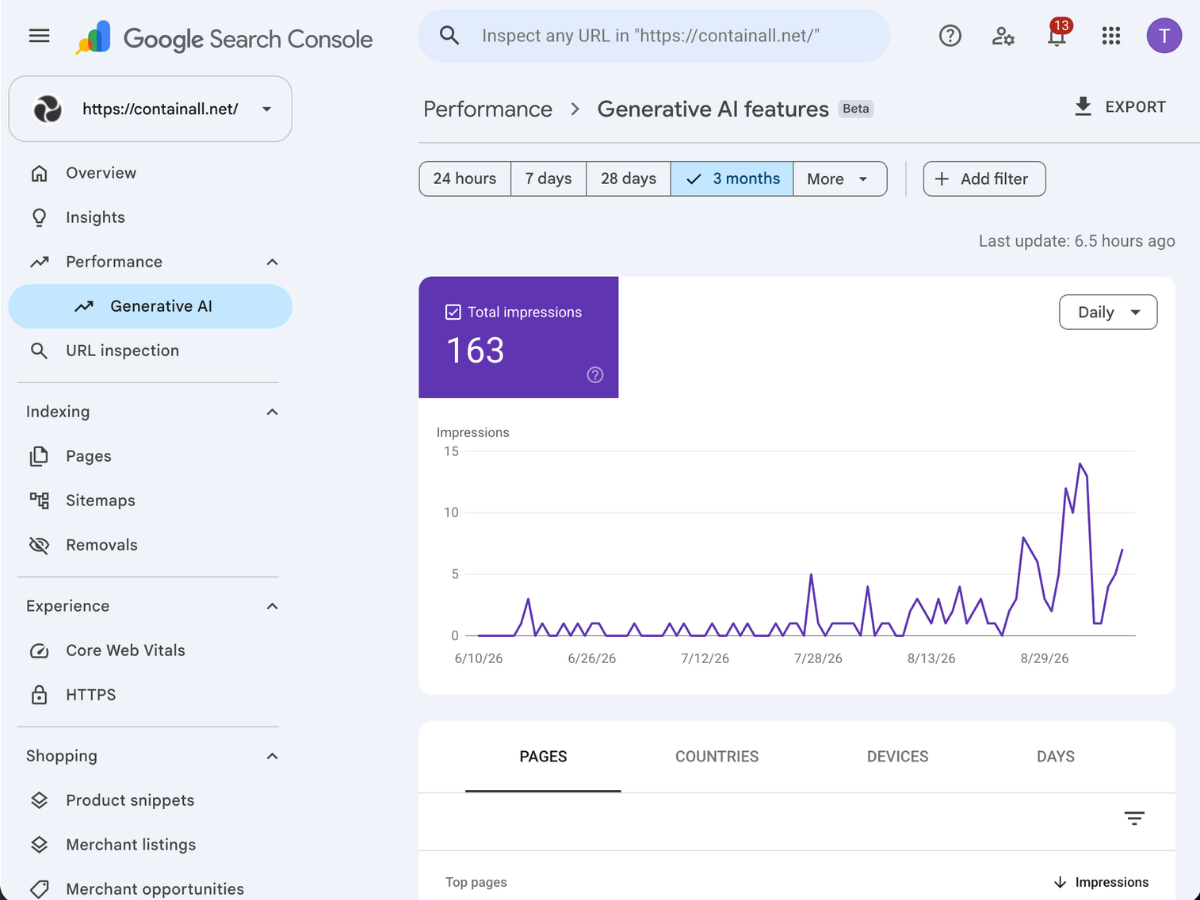
The AI performance report in Search Console shows how often your pages appear in AI Overviews and AI Mode, broken down by page, country, device, and date. It tracks impressions only, with no clicks, queries, or positions. So it tells you where AI shows you, not what that earns you. For the click side, tracking AI traffic in GA4 covers the rest.
What Does the AI Performance Report Actually Show?
The AI performance report shows impressions your site earned inside generative AI features on Google Search, meaning AI Overviews and AI Mode. Google announced the reports on June 3, 2026, and rolled them out to every property worldwide on August 31, 2026.
An impression here means a link to your site was shown to a user inside an AI feature. You can slice that by page, country, device, and date, and Discover has its own generative AI report listed alongside it. For a Shopify store, the pages tab is the one that matters. It tells you which products, collections, and posts Google’s AI actually pulls from, which pairs directly with what I cover in my guide to Google AI Mode for Shopify stores.
| Data | In the AI report? | Where it lives instead |
|---|---|---|
| Impressions | Yes | Also in the main performance report |
| Pages, countries, devices | Yes | Same tabs as the main report |
| Clicks | No | Main performance report, blended |
| Queries | No | Nowhere, Google does not break these out |
What Is Missing From the Report?
What is missing from the AI performance report is everything that connects visibility to money. No clicks, so you cannot see whether an AI Overview appearance sent anyone to your store. No queries, so you cannot see what shoppers asked. No position data either, and Search Labs experiments are excluded entirely.
The clicks are not gone, they are blended. Google’s performance report documentation confirms that a click on your link inside AI Mode counts as a regular click in the main Web report. You just cannot separate it from a classic blue link click, so a page could earn half its traffic from AI Mode and you would never know.
The row limits carry over from the main report too, including the 1,000-row cap on the table. Small stores will never hit it. Larger catalogs with thousands of products will, so export the data if you want the full picture.
Treat this report as a visibility gauge, not a revenue gauge. If you need query-level or competitor-level AI data, that gap is exactly why third-party AI visibility tools exist. Most SEOs will tell you Google will add queries eventually. Maybe, but I would not build a reporting routine around a feature that does not exist yet.
How Do You Read the Data You Have Today?
Reading the data you have today comes down to one comparison: AI impressions against total clicks over the same window. If AI impressions climb while clicks hold steady, AI is added shelf space. If clicks sink while AI impressions rise, AI is answering shoppers instead of sending them.
That second pattern is real. Pew Research found that users clicked a result on only 8% of searches with an AI summary, versus 15% without one. Knowing which of your pages sit in those summaries tells you where that trade is happening to you.
Then work the pages tab. Sort by impressions and note which page types win, because products, collections, and blog posts behave very differently in AI features. I fold this into the same monthly routine I use for finding quick wins in GSC. Check it monthly, not daily, because week-to-week swings in a new report will just make you seasick.
Should You Ever Use the Opt-Out Toggle Next to It?
The opt-out toggle next to the report, which Google calls the Search generative AI control, lets you exclude your whole site from AI Overviews, AI Mode, and generative AI in Discover. For a store, I would leave it set to include, and I mean always.
Google is blunt about the trade: excluded sites get no traffic and no impressions from these features, while competing content still appears there. Your competitor’s product fills the answer box you vacated, and shoppers asking AI Mode what to buy will simply never hear your name. The one honest use case I have seen is a publisher whose entire business is pageviews, and even then I would test it on a subfolder before touching the whole site.
To Google’s credit, the control is clean. It does not touch your normal rankings, it is not a ranking signal, and you can flip it back at any time.
The report exists so you can grow AI impressions, not so you can switch them off. If your AI impressions are low, the fix is earning your way in, and I walk through that playbook in my post on how to rank in AI Overviews.
Want a Clear Read on Your Store’s AI Visibility?
The AI performance report finally shows where Google’s AI features surface your store, page by page, but it stops at impressions. The useful work is pairing it with your click and revenue data, spotting which pages AI trusts, and pushing more pages into that group.
If you want help doing that, book a call with me. I will open your Search Console live on the call and show you exactly which pages are earning AI impressions, which are losing clicks to answers, and the three fixes I would make first. If it turns into a bigger project, my AI search services start with exactly that work.
Sources
- Google Search Central: Introducing Search Generative AI performance reports
- Search Console Help: Generative AI performance report
- Search Console Help: Performance report clicks, impressions, and position
- Search Console Help: Search generative AI control
- Pew Research: Google users are less likely to click when an AI summary appears
